What Writing Tools can do on a Mac
Writing Tools is Apple’s built-in writing helper. Apple says it’s available in most places you write, including third-party apps and websites. Here’s what it offers:
| Option | What it does | Good to know |
|---|---|---|
| Proofread | Fixes spelling and grammar, and explains each change | You step through the fixes one at a time |
| Rewrite | Rewords your text, or sets a tone: Friendly, Professional, or Concise | Click Rewrite again for another version |
| Describe a change | Rewrites the text the way you ask, like “make this more enthusiastic” | Called Describe your change in macOS 26 |
| Summarize and Key Points | Shortens text to what matters most | macOS 26 also offers List and Table |
| Compose | Writes new text from your description | Needs the ChatGPT extension |
What you need to use Writing Tools
Writing Tools comes with Apple Intelligence, so it has the same requirements. As of October 2026, Apple lists these:
| Requirement | Details |
|---|---|
| Chip | A Mac with M1 or later, or a MacBook Neo. Intel Macs can’t use it. |
| macOS | macOS Sequoia 15.1 or later. Write with Siri needs macOS 27. |
| Language | English, Danish, Dutch, French, German, Italian, Norwegian, Portuguese, Spanish, Swedish, Turkish, Vietnamese, Chinese (Simplified or Traditional), Japanese, or Korean. Your Mac’s language and Siri’s language must be the same one. |
| Storage | Up to 8 GB free, or up to 14 GB on Macs with M3 or later and at least 12 GB of memory. |
| Region | It doesn’t work on Macs bought in mainland China, or in mainland China when your Apple Account is set there too. |
| Cost | Free, but features that rely on Apple’s servers have daily usage limits. |
Apple keeps the current list on its Apple Intelligence requirements page. If your Mac has an Intel chip, read what Intel Mac owners can use instead of Apple Intelligence.
Check which Mac you have
- Choose Apple menu › About This Mac.
- Look for a line called Chip naming an Apple chip, such as Apple M1. If you see Processor with an Intel name instead, your Mac has an Intel chip and can’t run Writing Tools.
How to turn on Apple Intelligence
macOS Sequoia 15.1 to macOS Tahoe 26
- Open System Settings.
- Click Apple Intelligence & Siri in the sidebar.
- Click the switch next to Apple Intelligence, or click Turn on Apple Intelligence. Which one you see depends on your macOS version and whether you’ve set it up before.
Apple Intelligence keeps its models on your Mac, so give it time to finish setting up before you look for Writing Tools.
macOS 27 Golden Gate
Apple says Apple Intelligence is automatically available on eligible Macs once you update to macOS 27, so there’s usually nothing to switch on. Siri’s settings have moved to System Settings › Siri. There, click Try Siri AI (Beta) for the new Siri, or click Turn On Siri and choose Use Siri Classic to keep the old one. Writing Tools works either way; only Write with Siri needs Siri AI.
Note: macOS 27 is still changing: Siri AI is in beta, and settings can move between updates. This guide reflects macOS 27.2, as of October 2026.
How to use Writing Tools on Mac, step by step
Three ways to open Writing Tools
- Select some text, Control-click it (or right-click), and choose Writing Tools › Show Writing Tools.
- In Notes, Mail, and some other apps, hold the pointer over your selection and click the Writing Tools button that appears.
- In apps that have one, click the Writing Tools button in the toolbar.
Many apps also list it under Edit › Writing Tools, which is what makes a keyboard shortcut possible.
Proofread
- Select the text, open Writing Tools, and click Proofread.
- Each change appears in place, marked with a glowing underline.
- Click Next and Previous to step through the changes and read why each one was made.
- Click Show Original to compare, or Revert to undo them all.
- Click Done.
Rewrite, or describe the change you want
Click Rewrite for a new version, or pick Friendly, Professional, or Concise to set the tone. To ask for something specific, choose Describe a change (Describe your change in macOS 26) and type what you want.
The rewrite appears in place. Click Rewrite again for another version, Undo to step back, or Revert for your original. In text you can’t edit, like a PDF, the result shows in the Writing Tools window with a Copy button.
Summarize and organize
Choose Summarize (called Summary in macOS 26) or Key Points; macOS 26 also offers List and Table. Then click Copy to take the result with you, or Replace to swap it in for your text. Replace doesn’t appear when the text can’t be edited, such as on a web page.
Compose with ChatGPT
Compose writes new text from scratch, and it needs the ChatGPT extension. In macOS 27, open System Settings › Siri, click ChatGPT, then Set Up. With Siri AI, click Set Up Extensions, click ChatGPT, and turn on Use Extension instead.
Then Control-click in a text field, choose Show Writing Tools, and click Compose. Describe what you want, choose Include All Text or Selected Text, and press Return.
How to add a Writing Tools keyboard shortcut on Mac
Apple doesn’t list a keyboard shortcut for Writing Tools, but macOS lets you add one to any menu command:
- Choose Apple menu › System Settings, click Keyboard in the sidebar, then click Keyboard Shortcuts.
- Select App Shortcuts, then click the Add button (+).
- Set Application to All Applications.
- In Menu title, type
Show Writing Toolsexactly as written. - Click the Keyboard shortcut field, press the keys you want, and click Done.
Pick a combination no app already uses; Apple notes that a clashing shortcut won’t work. It also only works in apps that list Writing Tools in their menus.
In MacWriteBuddy: Select text in any app and press ⌃⌥G. A preview marks every fix before anything is replaced, and each rewrite action (part of Pro) can have its own shortcut too.
What’s new in macOS 27: proofreading as you type and Write with Siri
Proofreading as you type
In macOS 27, Apple says Apple Intelligence proofreads automatically as you type, across the system and in most third-party apps. MacStories’ review describes blue underlines under mistakes that can take a few seconds to appear. As of October 2026, we couldn’t find Apple documentation on how to switch it off or which languages it covers.
Write with Siri (beta)
With Siri AI on, select some text and hold the pointer over the Siri AI icon, or click Write with Siri when it appears. Then ask in your own words: draft something new, proofread, rewrite, ask for feedback, or summarize. You can keep refining in the same Siri conversation.
It needs macOS 27 on a Mac with M1 or later or a MacBook Neo. Siri AI launched in English, with French, Japanese, Korean, Portuguese, and Spanish named next, and it isn’t available to users under 13 or in mainland China. Apple says server-based features have daily limits and that expanded access will cost a fee in the future. Apple’s Write with Siri guide has the latest.
Is Apple Intelligence Writing Tools private?
Apple says Apple Intelligence runs on your Mac in many cases, so a request can be handled without your text leaving it. More complex requests can go to Private Cloud Compute, Apple’s own servers, where Apple says your data isn’t stored or made accessible to Apple. Apple doesn’t publish which Writing Tools requests run where.
To see what went to Apple’s servers, open System Settings › Privacy & Security › Apple Intelligence & PCC Report. It shows requests processed by Private Cloud Compute, plus any sent to extensions like ChatGPT, and you can export a report. Apple’s Apple Intelligence privacy page has the details.
The ChatGPT extension, signed in or not
- You’re asked before your text is shared with ChatGPT.
- Not signed in: your IP address is hidden from OpenAI, and OpenAI isn’t allowed to use your requests to train its models.
- Signed in: your ChatGPT account settings and OpenAI’s privacy policy apply. Apple says OpenAI may log your requests and use them to train or improve its models.
For a wider look at what other services keep, see what Grammarly, ChatGPT, and other AI writing tools do with your text.
Writing Tools not showing on your Mac? Try these fixes
- Check your Mac and macOS version. You need M1 or later (or a MacBook Neo) and macOS 15.1 or newer. Intel Macs don’t get Writing Tools at all.
- Turn on Apple Intelligence. On macOS 15.1 to 26, go to System Settings › Apple Intelligence & Siri. If you just turned it on, give it time to finish setting up.
- Match your languages. Your Mac’s language and Siri’s language must be the same supported language.
- Free up storage. Apple Intelligence needs up to 8 GB, or up to 14 GB on some Macs.
- Check your region. It doesn’t work on Macs bought in mainland China, or in mainland China with an Apple Account set to mainland China.
- Ask IT about a work Mac. Organizations can switch off Writing Tools on Macs they manage.
- Try another app. Each app decides how much of Writing Tools it allows: the full experience, a limited panel, or none at all. On text you can’t edit, like a web page, there’s no Replace button.
- Quit and reopen the app, and restart your Mac if Writing Tools is still missing.
Writing Tools limits, and other ways to proofread on a Mac
Writing Tools is free and built in, so on a supported Mac it’s the obvious first thing to try. Its limits: no Intel Macs, fewer options in apps that restrict it, a fixed list of languages, and daily limits on server-based features. Other options:
- The built-in spelling and grammar checker works on every Mac, Intel included, under Edit › Spelling and Grammar. Here’s how to spell check and grammar check on a Mac.
- Grammarly, LanguageTool, and other services underline as you type and follow you to other devices. Compare them in our roundup of Grammarly alternatives for Mac.
- Not sure what you need? Our guide to choosing the best grammar checker for Mac walks through what matters.
Where MacWriteBuddy fits
If you’re on macOS 27 with Apple Intelligence, the built-in proofreading may be all you need. MacWriteBuddy suits a different habit: select text in any app, press ⌃⌥G, and check a preview of every change before it replaces your text. It can use Apple Intelligence (Apple’s on-device model, on macOS 26 or later), a small open model that runs offline, or your own key for OpenAI, Anthropic, Gemini, and others. It also runs on Intel Macs with macOS 14 or later.
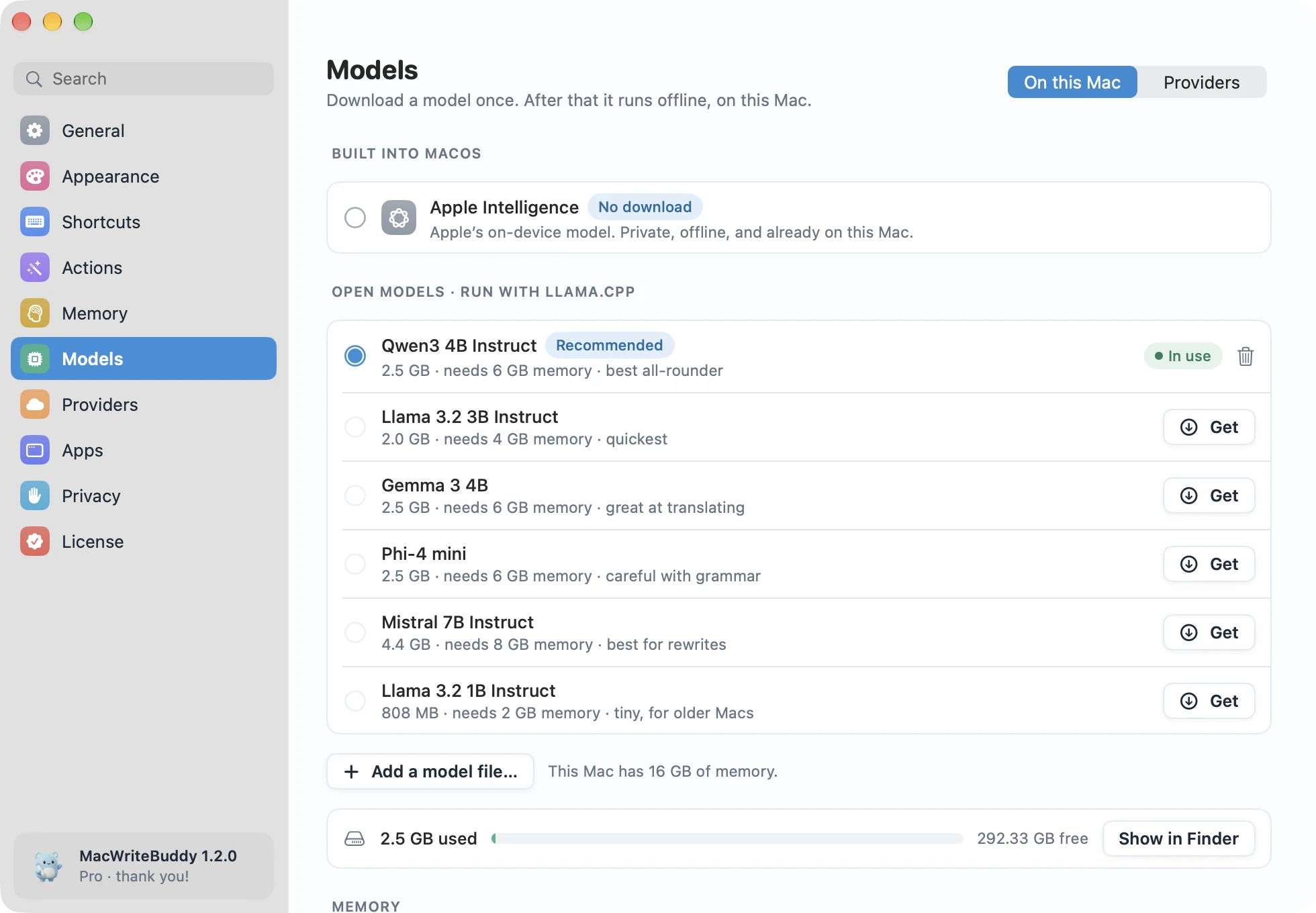
Fixing spelling and grammar is free. Pro adds rewrite actions like Make it formal, Summarize, and actions you write yourself, for a one-time $39. Download MacWriteBuddy to try it.
Sources
- Apple Support: Use Writing Tools with Apple Intelligence on Mac (macOS 27)
- Apple Support: Use Writing Tools with Apple Intelligence on Mac (macOS Tahoe 26)
- Apple Support: How to get Apple Intelligence
- Apple Support: Get started with Apple Intelligence on Mac (macOS Tahoe 26)
- Apple Support: Turn on and activate Siri on Mac (macOS 27)
- Apple Support: Turn on ChatGPT on Mac (macOS 27)
- Apple Support: Write with Siri on Mac
- Apple Support: Create keyboard shortcuts for apps on Mac
- Apple Support: Mac computers with Apple silicon
- Apple Newsroom: Siri AI is here (September 14, 2026)
- Apple Newsroom: Apple Intelligence is available today (October 28, 2024)
- Apple: Apple Intelligence and privacy
- Apple: ChatGPT extension and privacy
- Apple Platform Deployment: Device management restrictions for Mac
- Apple Developer: NSWritingToolsBehavior
- 9to5Mac: How to add a Writing Tools shortcut on Mac
- MacStories: macOS 27, the MacStories review
- MacRumors: macOS 27 roundup